Set up RenX in Claude
RenX is an account-level connector for Claude, Claude Desktop, Cowork, and supported mobile conversations.
Add RenX
For an individual account:
- Open Customize > Connectors.
- Select +, then Add custom connector.
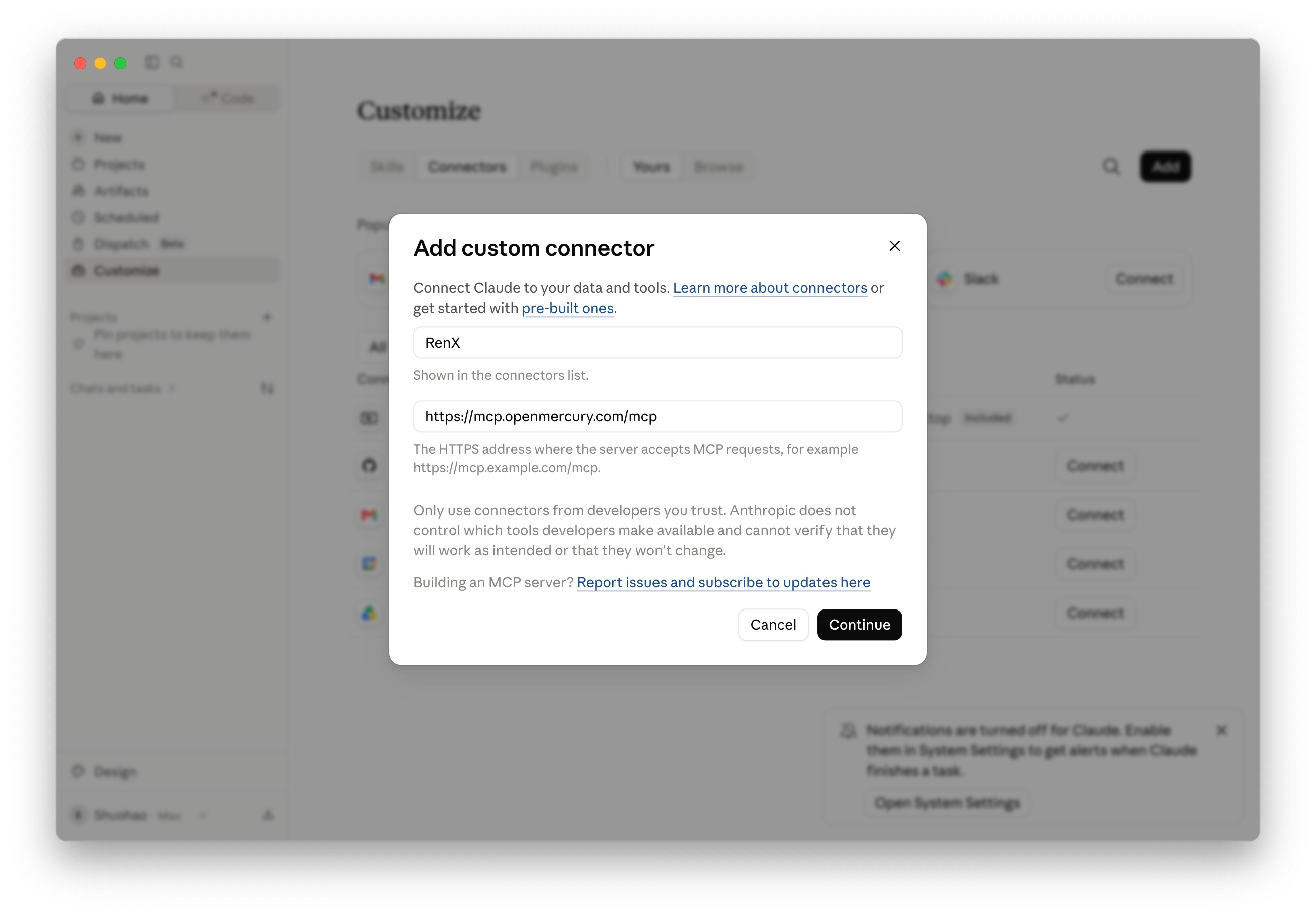
- Enter RenX as the name.
- Enter
https://mcp.openmercury.com/mcp. - Select Continue.
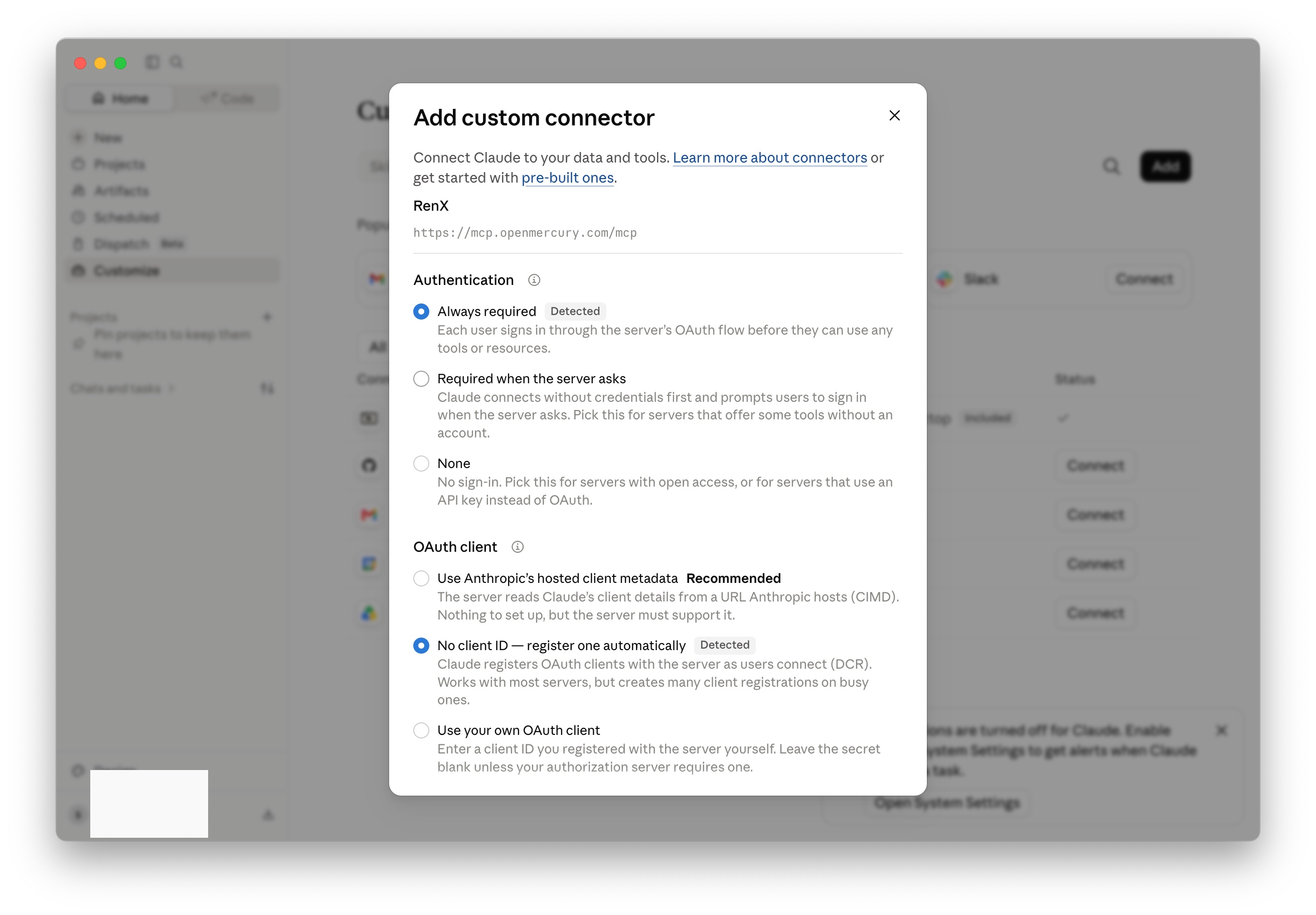
- Keep the detected settings: Always required for authentication and No client ID — register one automatically for the OAuth client.
- Finish adding the connector.
For Team or Enterprise, an owner adds RenX under Organization settings > Connectors > Add > Custom > Web. Members then connect their own RenX accounts.
Authenticate
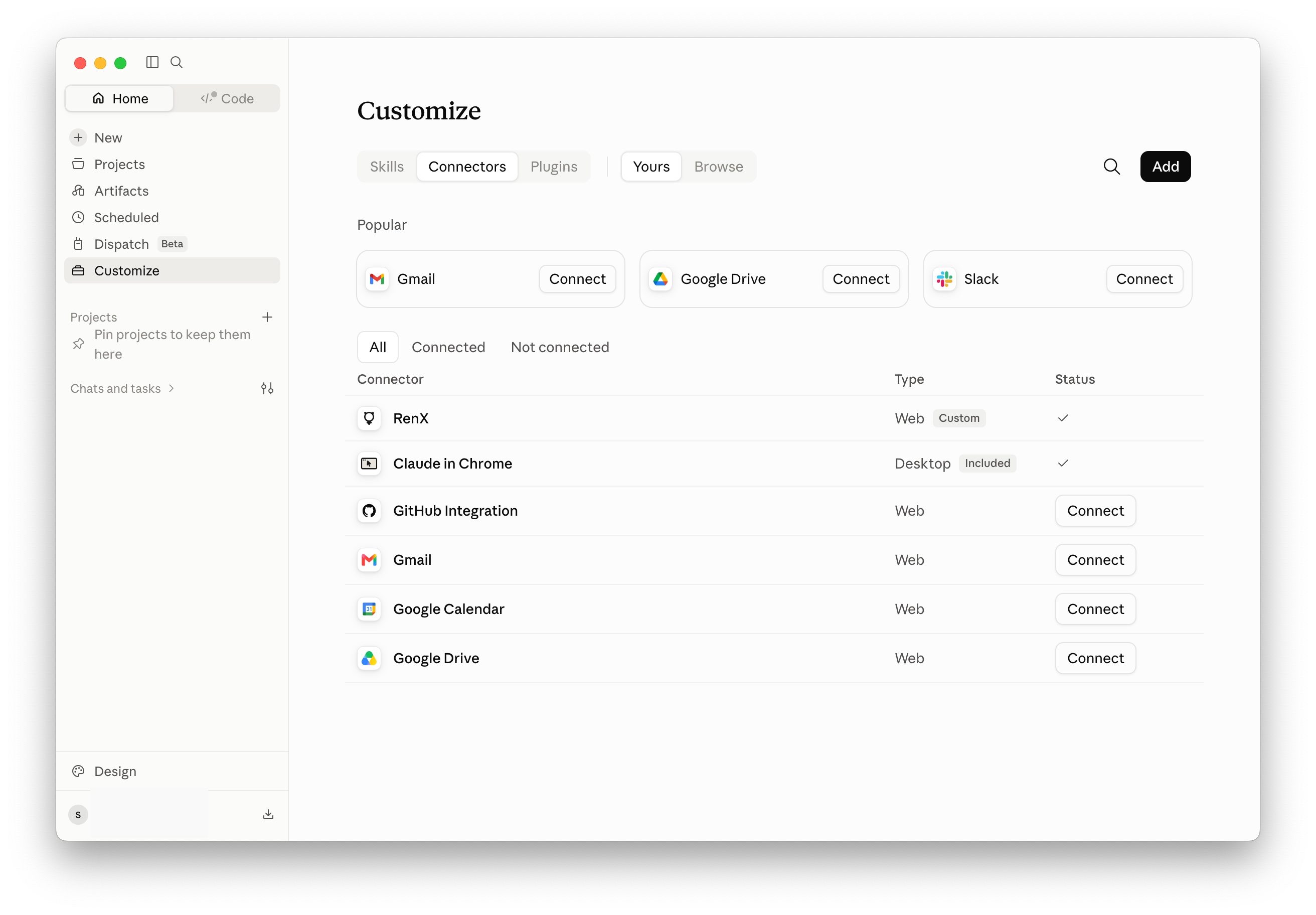
- Find RenX under Customize > Connectors.
- Select Connect.
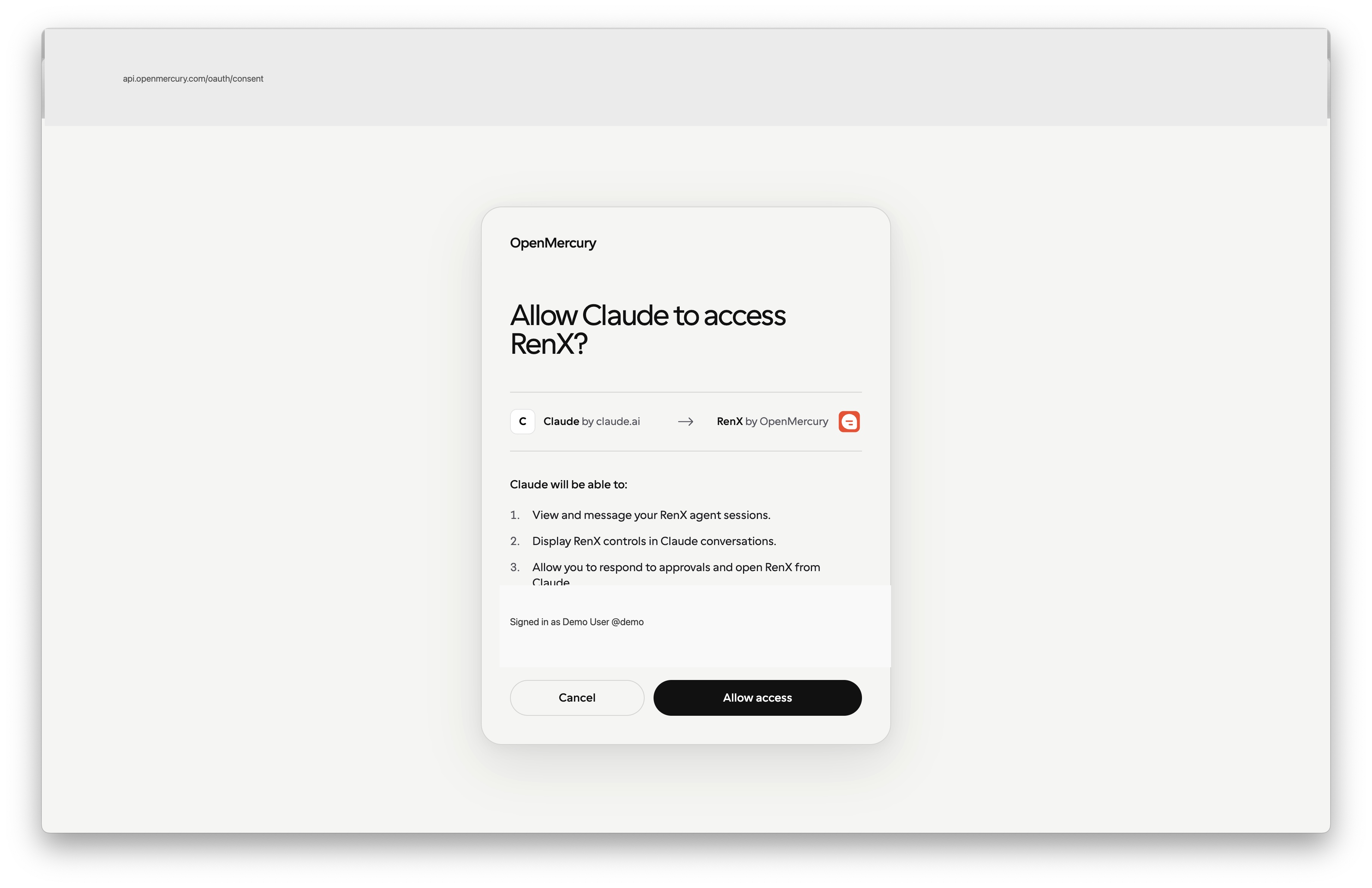
- Verify the RenX account shown in your browser.
- Select Allow access, then return to Claude.
- Confirm that RenX is shown as connected.
- Enable RenX in a conversation from + > Connectors.
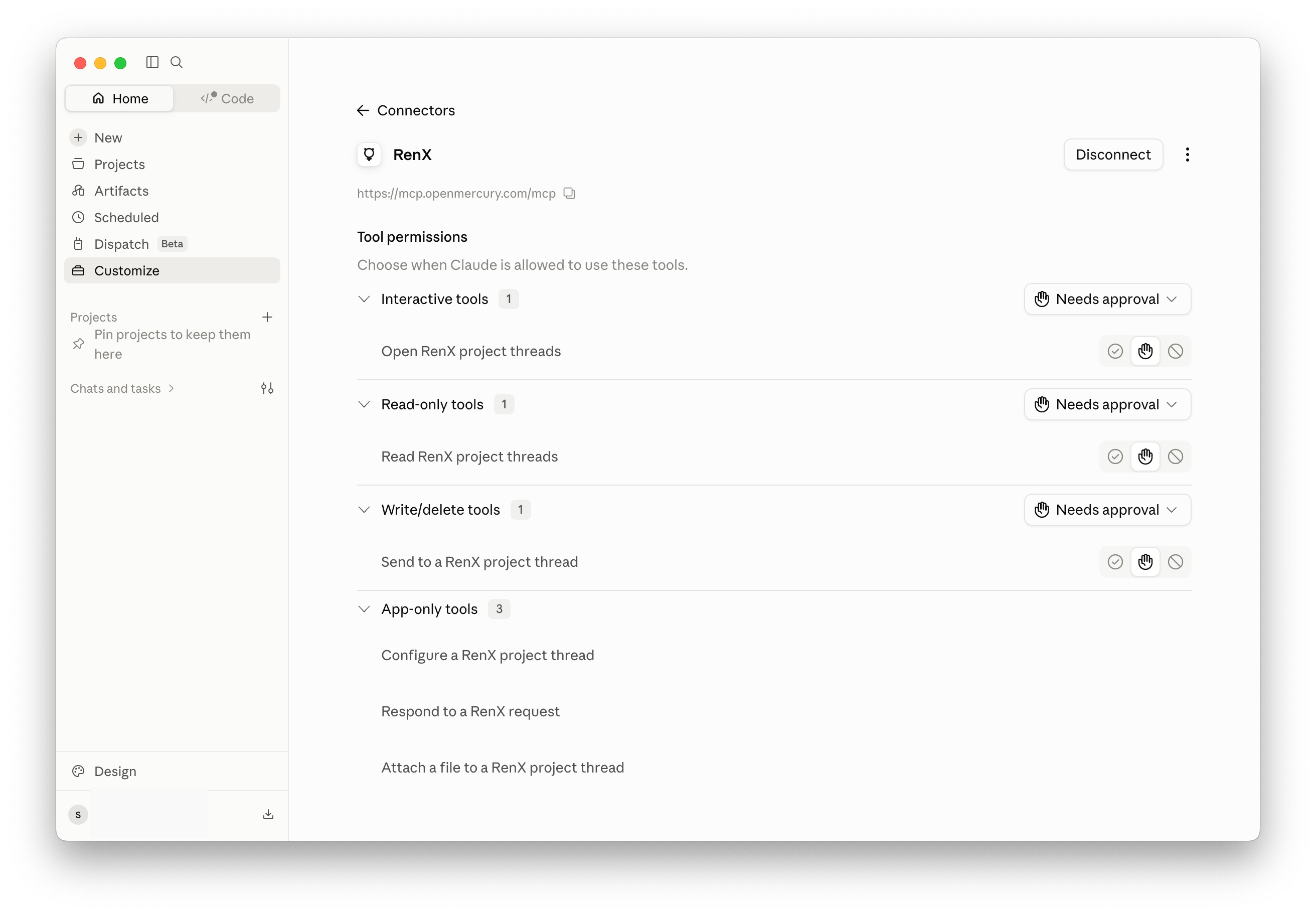
Review tool permissions
Open the RenX connector to review its tool permissions. Keep Needs approval unless you intentionally want Claude to use that tool group without asking. App-only tools are operated by you inside the embedded RenX interface rather than autonomously by Claude.
Verify the connection
Ask Claude:
Show my recent RenX agent sessions.
Then ask Claude to open or summarize one of the returned sessions.
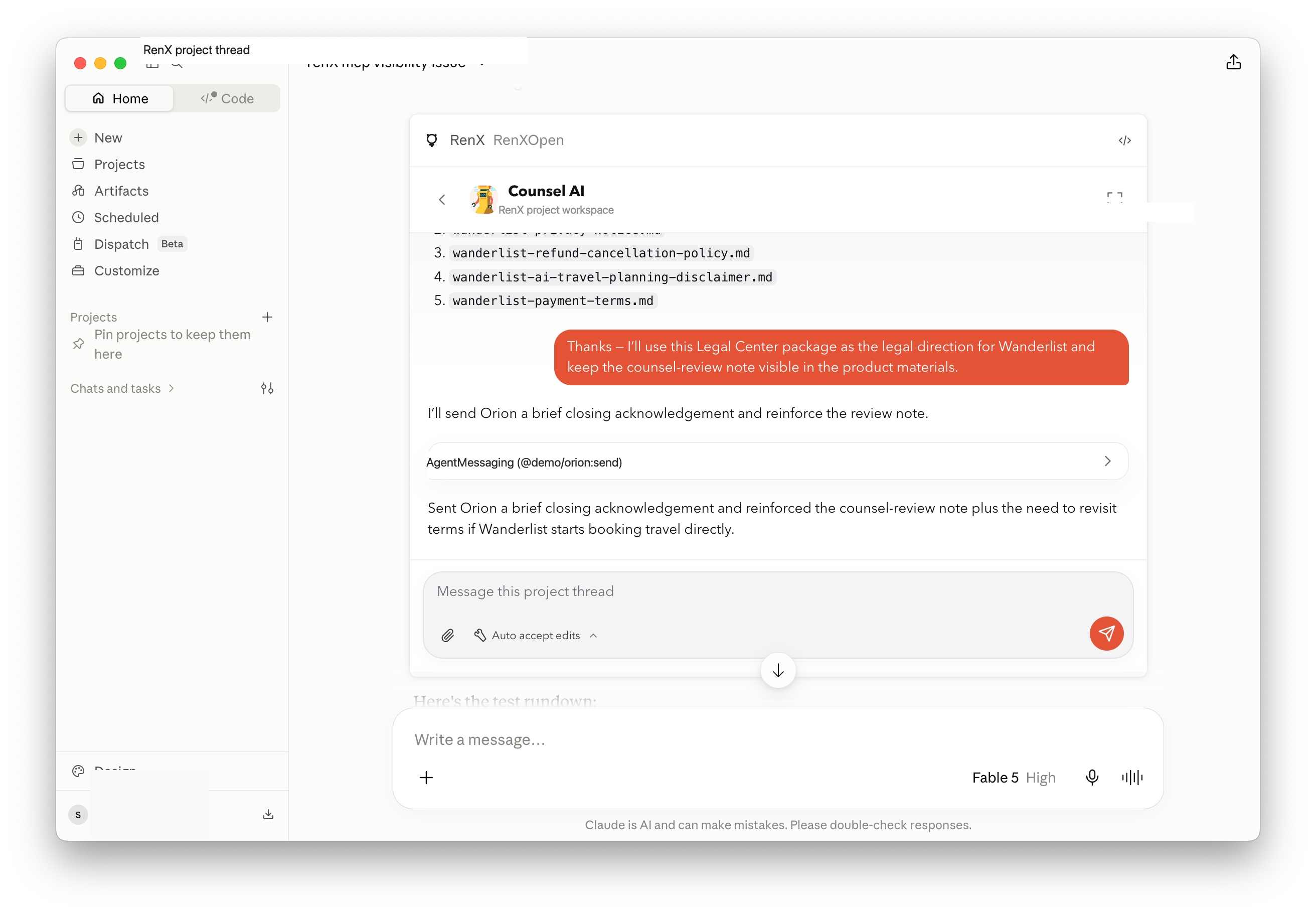
When Claude opens a RenX project thread, you can read the conversation, attach files, respond to requests, and send messages without leaving Claude.
Remove RenX
Disconnect RenX under Customize > Connectors, or revoke the connection in RenX under Settings > Devices.
Troubleshooting
- Add custom connector is missing: On Team or Enterprise, ask an owner to add RenX for the organization.
- Claude does not use RenX: Enable it under + > Connectors in the current conversation.
- Tools are outdated: Disconnect and reconnect RenX, then start a new conversation.
See Anthropic’s custom connector guide for plan and administration details.